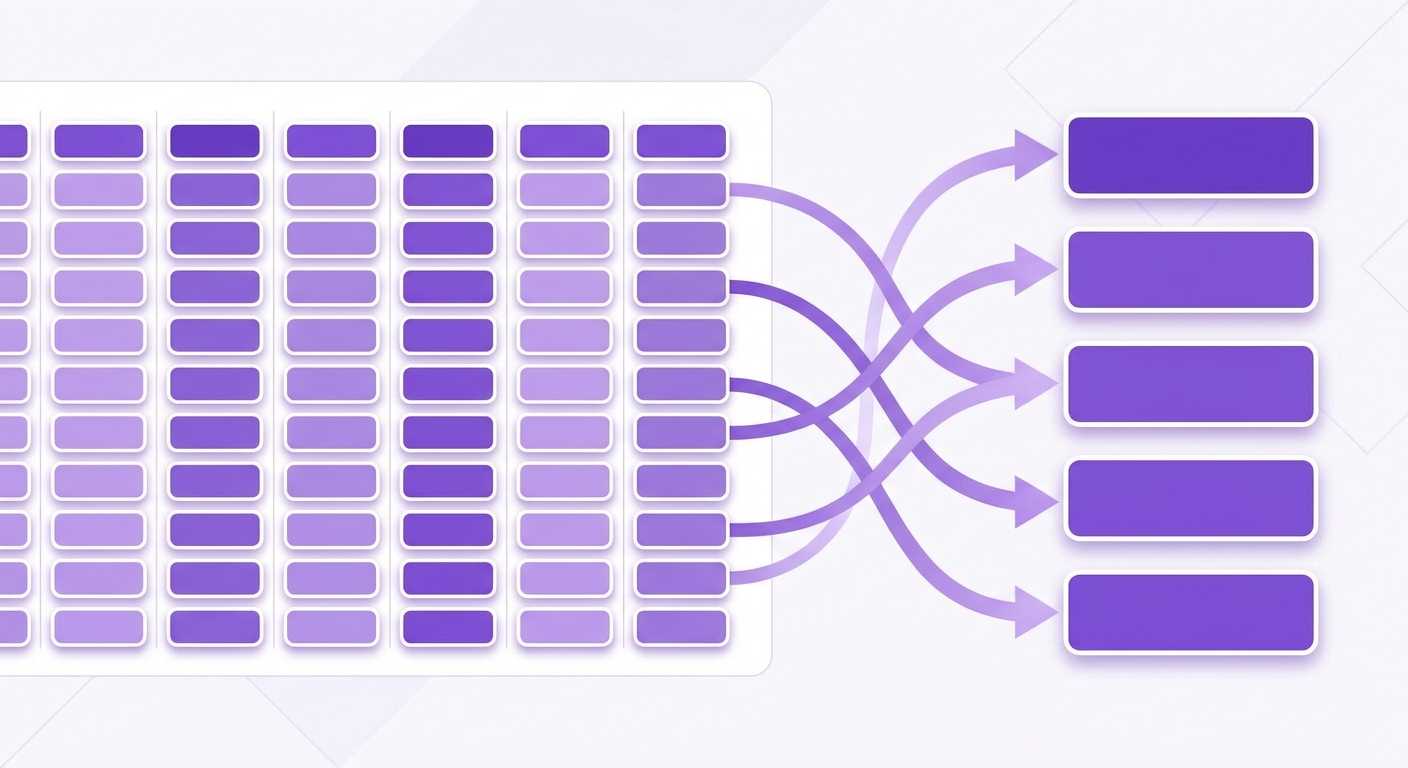
Have a CSV export that does not follow our standard format? With the column mapper you link your own columns to the fields Cryptotax expects, without having to reformat your file.
Last update: June 2026
Do you have a CSV export from an exchange or wallet that is not automatically recognised, and do you not want to retype your transactions into our template? With the column mapper you upload your file in its own format and map the columns to the fields Cryptotax expects yourself. Your mapping is remembered, so the next export in the same format is processed immediately.
This is the difference from the fixed Custom CSV template: with the template you adapt your data to our format. With the column mapper you leave your file as-is and tell Cryptotax once how to read it.
Use the column mapper for:
- An exchange or broker not yet automatically supported
- An export from another tax tool with different column names
- Your own records (Excel, Google Sheets) that you do not want to reformat
How it works
- Log in to Cryptotax -> Add account -> CSV Import -> Custom CSV.
- Upload your file as you received it from your exchange or tool.
- If Cryptotax does not recognise the column names, you are automatically taken to the column mapper. If it does recognise the columns, your file is imported immediately and you do not need to map anything.
- Work through the mapper (see below) and confirm.
- Check the result in your transaction overview.
The next time you upload an export with the same column structure, Cryptotax recognises the format from your earlier mapping and processes the file automatically. You do not need to repeat the steps.
The column mapper, step by step
1. Map columns
You see the first rows of your file as a preview. For each field Cryptotax needs, you choose which column from your file belongs to it. The fields are the same as in the Custom CSV format:
| Field | Required | Description |
|---|---|---|
date | Yes | The timestamp of the transaction |
type | Yes | The transaction type (buy, sell, swap, ...) |
asset | Yes | The ticker of the cryptocurrency |
amount | Yes | The quantity |
price_eur | No | EUR price per unit. Not mapped? Cryptotax looks up the price automatically. |
fee_amount | No | Fee paid (commission) |
fee_asset | No | The asset used to pay the fee |
exchange | No | Name of the exchange or source |
tx_id | No | Unique transaction ID for deduplication and for linking swap legs |
notes | No | Free-form note (appears in the accountant report) |
You must map at least date, type, asset and amount. Leave optional fields blank if your file does not contain them.
2. Map transaction types
Every exchange names transactions differently. Cryptotax shows the raw values that appear in your type column (for example Buy, Purchase, Deposit, Reward), and you link them to one of the standard types:
| Type | Tax treatment |
|---|---|
BUY | Acquisition (purchase with EUR) |
SELL | Disposition (taxable event) |
TRADE | Crypto-to-crypto swap (disposition + acquisition) |
DEPOSIT | Received from external source (internal transfer) |
WITHDRAWAL | Sent to external address (internal transfer) |
INCOME | Staking, mining, airdrops (taxable income) |
GIFT_IN | Received as gift |
GIFT_OUT | Given as gift |
LOST | Lost, stolen or hacked |
FEE | Standalone fee |
A raw value you do not map is imported as unknown (UNCLASSIFIED). The transaction is not lost: it appears in your overview so you can set the type manually later. This keeps your portfolio cost basis intact, even if one type value is not yet clear.
3. Notation settings
Here you tell Cryptotax how numbers and dates are formatted in your file:
- Date format: leave blank for automatic recognition (ISO 8601). If your file differs, provide the pattern, for example
dd/MM/yyyy HH:mm. - Time zone: the zone in which the dates in the file are expressed. Cryptotax converts everything to UTC internally.
- Decimal separator: point (
1234.56) or comma (1.234,56). Important for exports from European tools.
You can also give the mapping a name (for example "MyExchange export") so you can recognise it easily later.
4. Review and import
Before importing, Cryptotax shows a preview of the result and marks rows with problems. Those rows are skipped or imported as unknown, so one bad row does not block your entire upload. If everything looks correct, confirm with Import.
Swaps and crypto-to-crypto
A crypto-to-crypto swap consists of two rows with the same tx_id: the outgoing leg (what you sell) and the incoming leg (what you receive). Make sure you map the tx_id column if your file contains swaps, otherwise the two legs will not be linked. More explanation is on the Custom CSV import page.
Frequently asked questions
Do I need to modify my file?
No. That is exactly the difference from the fixed template: you upload your export as you received it and map the columns in the wizard.
What if I mapped a column incorrectly?
Delete the CSV account and upload the file again. You then work through the mapper again and can correct the mapping.
Is my mapping saved?
Yes. Cryptotax remembers your mapping per column structure. A subsequent export in the same format is processed automatically, without needing to map again.
What if my export is already recognised?
Then you skip the mapper entirely: your file is imported immediately. The column mapper only appears when Cryptotax does not recognise the column names.