
Hoe importeer je Bitpanda in Cryptotax Bitpanda laat je je volledige transactiegeschiedenis downloaden als CSV-bestand. Dat bestand upload je in Cryptotax. Je hebt geen API-sleutel nodig. Cryptotax le…
How to import Bitpanda into Cryptotax
Bitpanda lets you download your full transaction history as a CSV file. You upload that file to Cryptotax. You do not need an API key. Cryptotax reads your buys, sells, deposits, withdrawals, staking rewards and fees, and calculates your results from them.
Besides crypto, Bitpanda also sells stocks, ETFs and precious metals. Those appear in the export too. Further down you can read how Cryptotax treats them.
Note: the Bitpanda import is new. After your first import, check that the number of rows and your balances look right. If something looks off, report it through the support form and we will adjust the import.
What you need
- An account on Bitpanda
- An account on Cryptotax (see create an account)
Step 1: Export your transaction history from Bitpanda
- Log in to Bitpanda (app or web) and open your profile.
- Go to Reports and Statements.
- Choose Transaction history, the full period and the CSV format.
- Download the file.
Always choose the full period since your first purchase. With a one-year export Cryptotax misses the purchase price of coins you bought earlier.
The file starts with a few lines of disclaimer and account details. That is normal, Cryptotax skips them. Do not open the file in a spreadsheet to save it again.
Step 2: Upload the file in Cryptotax
- Log in to Cryptotax, go to My sources and choose Add source.
- Choose CSV import, then the Bitpanda tile. The Bitpanda tile under Exchange is the connection with an API key, which you do not need here.
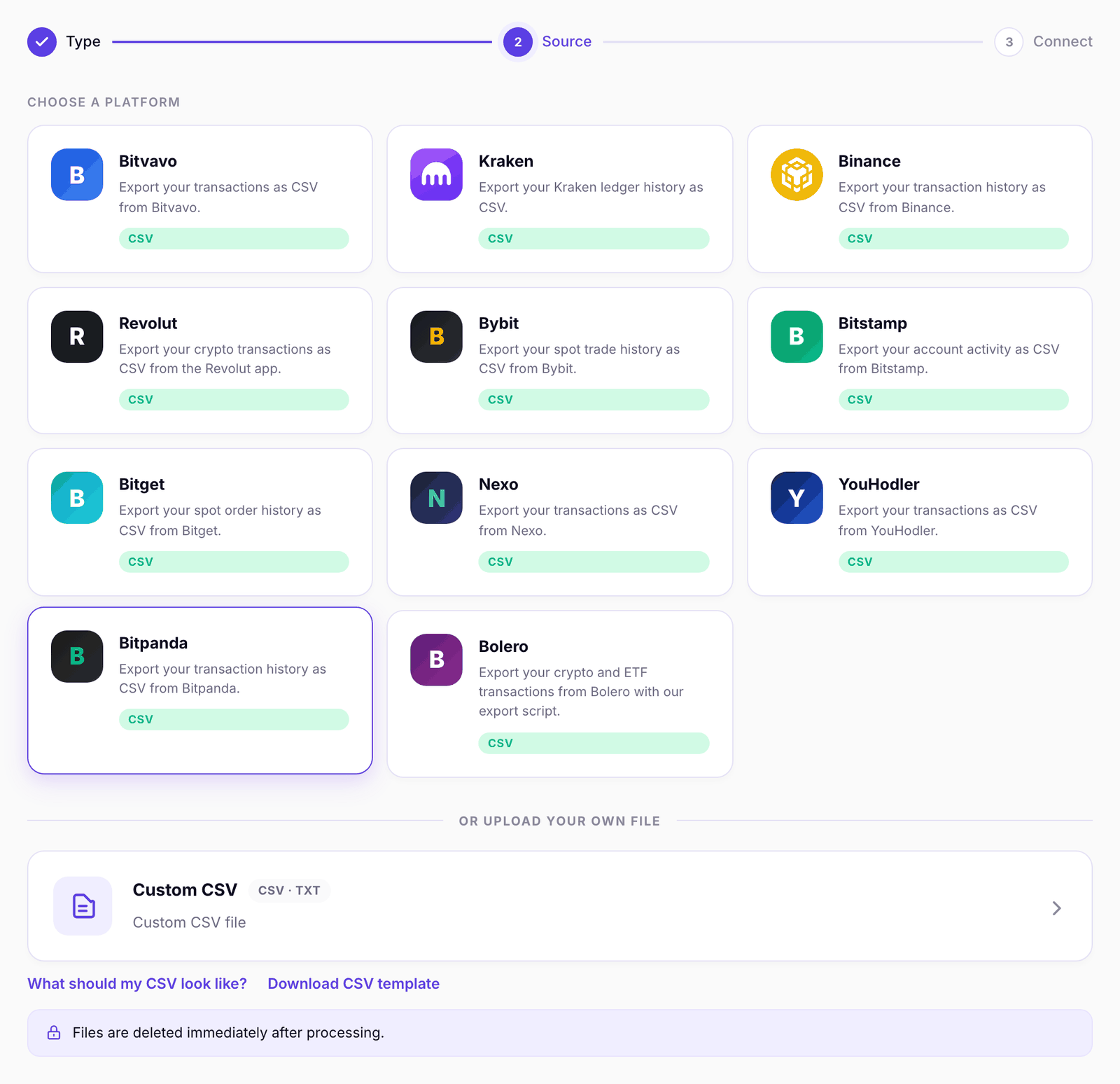
The Import Bitpanda screen with the export steps opens.
- Drag the CSV file into the upload field, or pick it with the file picker.
- Confirm the upload. Cryptotax processes your history and calculates your results.
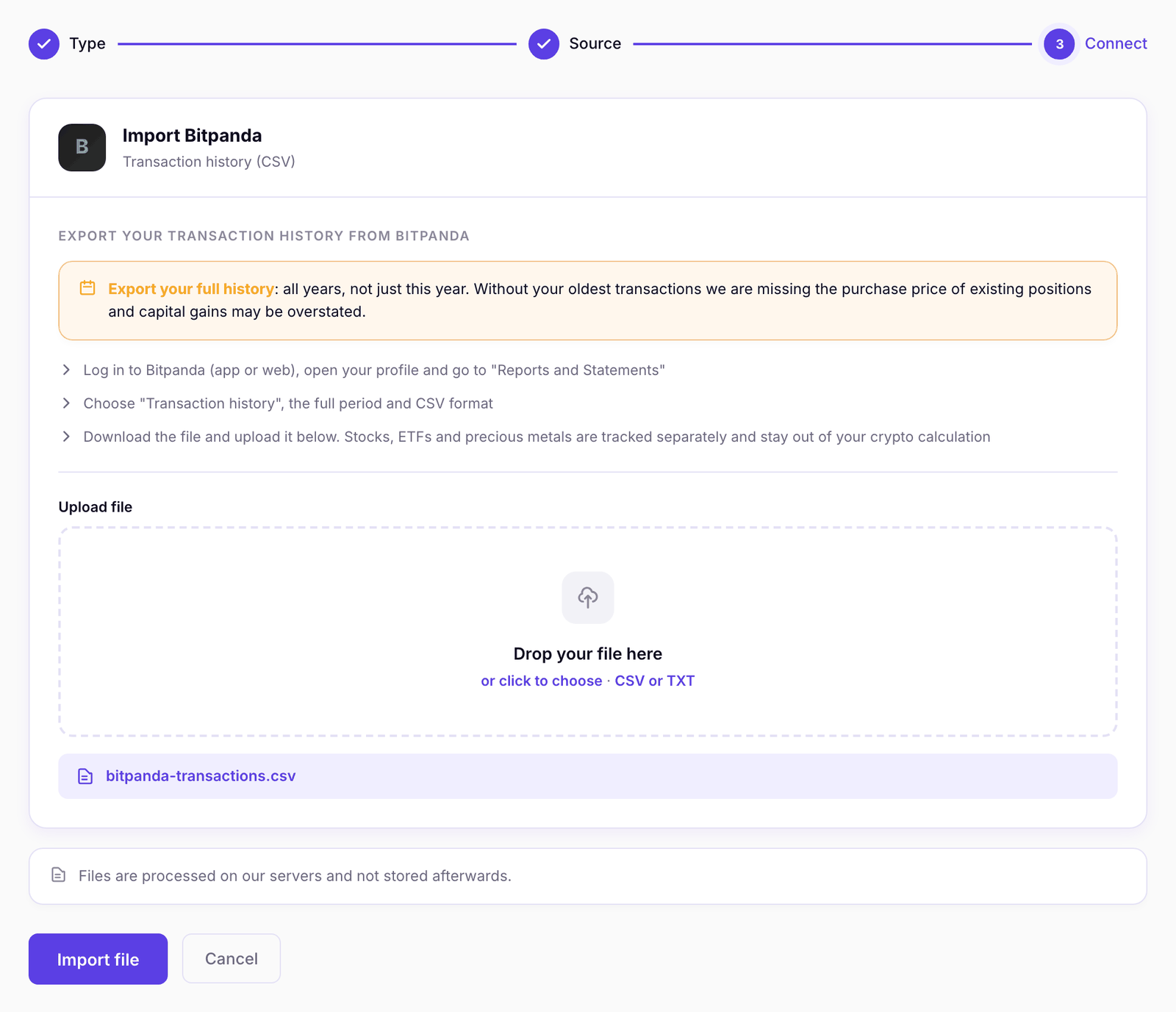
New transactions? Later, download a new export of the full period and upload it again.
What does Cryptotax do with your rows?
| Type in the file | What Cryptotax makes of it |
|---|---|
| Buy | A swap: your euros go out, the coin comes in. The euros set the purchase price. |
| Sell | A swap: the coin goes out, the euros come in. This is a sale in your capital gains calculation. |
| Deposit and withdrawal | A deposit or withdrawal. Euros count as cash on your account. Coins become transfers that Cryptotax matches with your other wallets and exchanges. |
| Staking reward and reward | A reward, booked as income at the market value at that moment. |
| Transfer of BEST (incoming) | A coin received for free, with no acquisition cost. Not income. |
| Transfer(stake) and transfer(unstake) | Skipped. The coin goes into or out of staking but stays yours. |
| Other transfers | Processed neutrally and put on the To review page so you can check what it is. |
| Fee | A separate fee line next to the transaction. |
Bitpanda's spread is already inside the price you pay or receive. Cryptotax does not add it to the fees a second time.
Stocks, ETFs and precious metals
Bitpanda labels every row with an asset class. Cryptotax does read stocks, ETFs, precious metals and other commodities, so your position stays visible in your overview. They do not count in your crypto calculation: they are booked as non-crypto and produce no gain or loss there.
A row with an asset class that Cryptotax does not know is never booked as crypto. That row gets an error message and stays out of the calculation until we support that class.
Frequently asked questions
- Some rows show an error: after the import you can see which rows could not be read and why, for example an unknown asset class or an amount that cannot be read. Send us the file through support if you do not understand why.
- I see items on the To review page: those are usually transfers whose type Cryptotax is not sure about. Open the item and choose what it was. Read more in fixing multiple issues at once.
- My balance is wrong: check that you exported the full period and that coins you moved to or from another wallet or exchange were imported there as well.
- Bitpanda Pro: this is a different export (One Trading). This import does not support it.
Next steps
- Add your other wallets and exchanges too, so transfers between your accounts get matched.
- Review the results and resolve the items on the To review page.