
On the Issues page, tick several events or a whole group and adjust them in one go. Handy for spam and scam tokens.
Does your wallet receive lots of tokens you never asked for? Then your Issues page quickly fills up with items such as "Unknown source". You no longer have to resolve them one by one: tick the rows, or a whole group at once, and adjust them together. This guide shows how it works.
When to use this
Bulk actions are meant for events that all get the same treatment. The typical case is spam and scam tokens: tokens that scammers send to thousands of wallets to lure you to a fake website. You did not buy them and you usually cannot do anything with them, but they do show up in your transactions.
If an event has its own story, such as a transfer from your other wallet or a purchase with a missing price, resolve it separately with the Resolve button on that row.
Step 1: tick the rows
- In the app, go to Issues.
- Optionally pick a Tax year at the top right, or use the filters to show only one kind of issue.
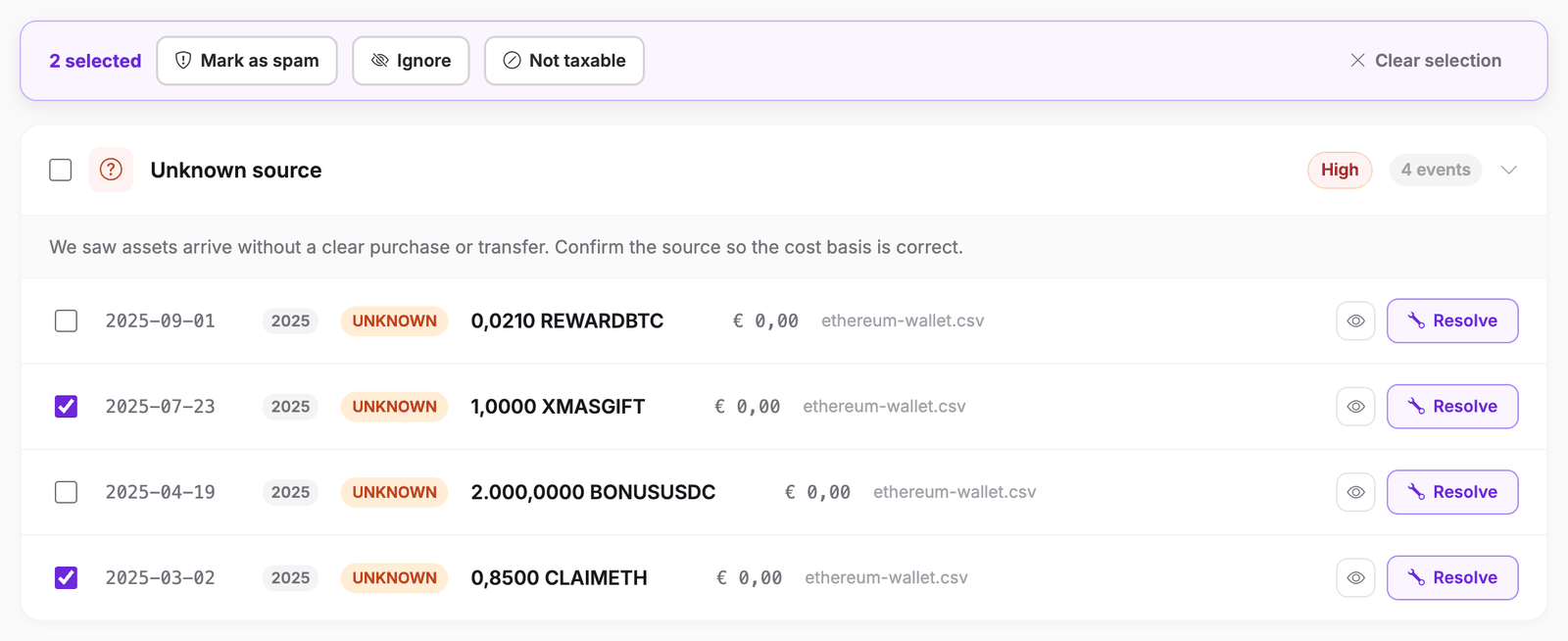
- Tick the box at the left of each row you want to adjust.
As soon as you tick something, a bar appears at the top with the number of selected events and the available actions. The bar stays in view while you scroll.
What do the markers at the left of a row mean?
- A checkbox: this event is still open and can be selected.
- A green check: this event is already resolved.
- A lock: this event belongs to a tax year that is still locked. Unlock the year to adjust it.
- A grey dot: an orphaned correction. Resolve it with the Resolve button on that row.
Step 2: select a whole group at once
Every group has a checkbox in its title bar. Ticking it selects all open events of that group that are visible at that moment. Filters count: if you first pick tax year 2025, you only select the events of 2025.
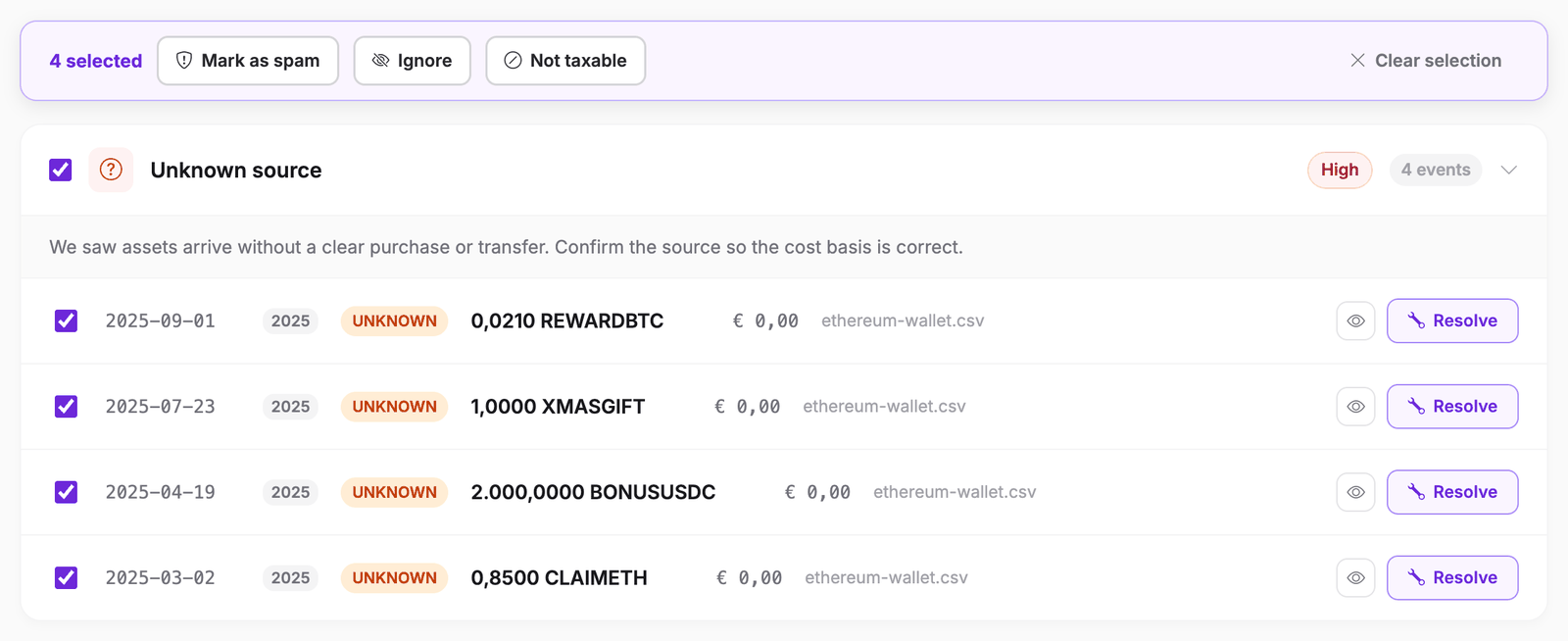
Check the list once more before you continue. If it contains a token you did buy or receive yourself, untick that row. Clear selection lets you start over.
You can adjust at most 500 events at once. If you have more, apply the first 500 and then select the rest.
Step 3: choose the action
The bar offers three actions. They apply to all selected events.
- Mark as spam: the event is ignored and labelled as spam. It does not count in your calculation and does not appear in your reports. This is the right choice for scam tokens.
- Ignore: the same effect, without the spam label. Use this for events that do not belong in your file and are not spam.
- Not taxable: the event is kept in your file but taken out of the tax calculation.
After you choose, Cryptotax asks for confirmation and adjusts all events in one go.
Step 4: wait for the recalculation
After a bulk action, Cryptotax recalculates your file once. At the top of the page you see a notice that the recalculation is scheduled. While that notice is shown, the figures have not been updated yet. When the recalculation is done, the notice disappears and the list refreshes by itself.
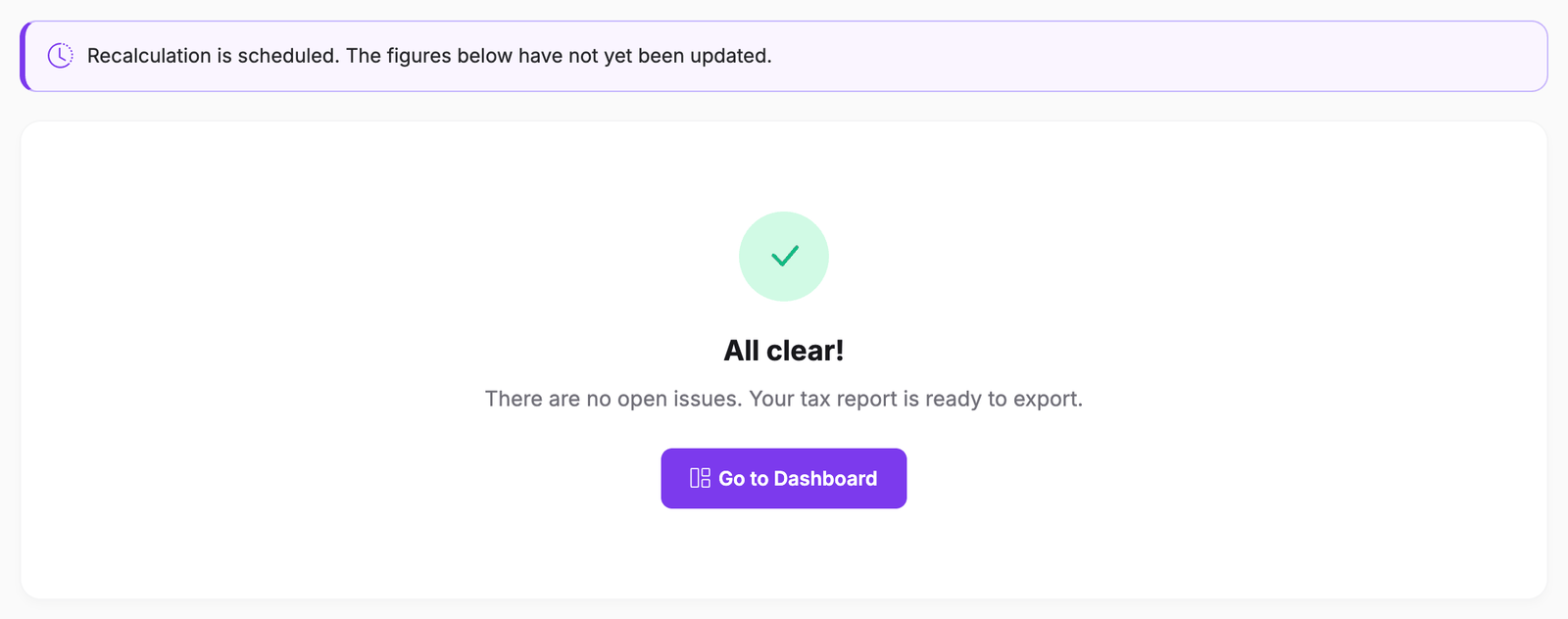
Events you mark as spam or ignore disappear from the Issues list. That is expected: they no longer need attention.
Undoing an adjustment
Did you include the wrong event by accident? You can restore it.
- Go to the dashboard of the tax year and open the Taxable tab. Ignored events are listed there too.
- Tick the events you want to restore.
- Click Restore original.
Cryptotax then removes your adjustment and recalculates. To adjust a single event, use the pencil on its row. Read more in Tax Events Editor: adjust transactions manually.
Frequently asked questions
Why can I not tick some rows?
Rows with a lock belong to a tax year that is still locked. Rows with a green check are already resolved. Only open events of an unlocked year can be adjusted in bulk.
I am not sure whether a token is spam. What now?
Only mark as spam what you certainly did not buy, earn or use yourself. If in doubt, leave the row unticked and look at the event separately with the eye icon or the Resolve button. A token you sell later does belong in your calculation.
My selection disappeared after I changed a filter. Is that right?
Yes. The selection only contains events that are visible at that moment. If you hide rows with a filter or another tax year, they drop out of the selection. That way you never adjust something you cannot see.