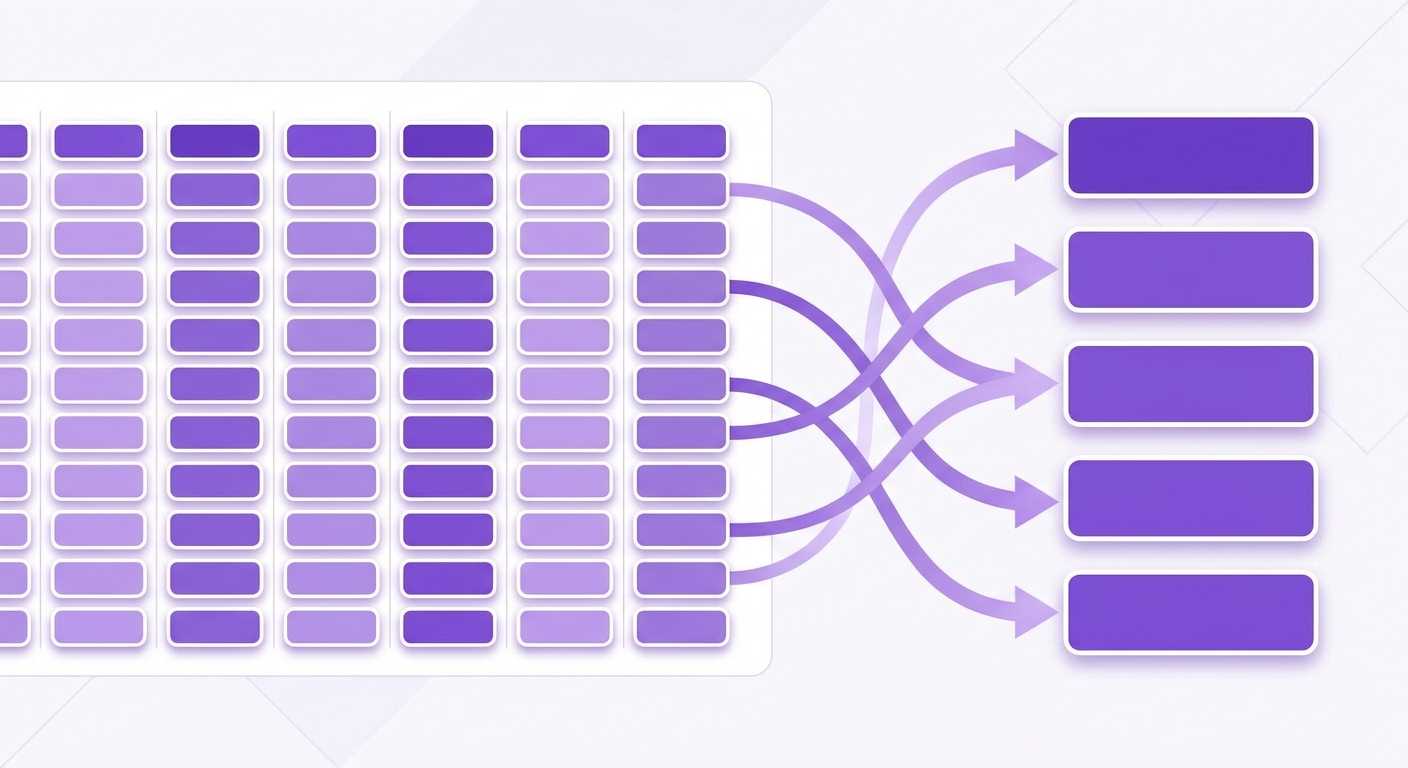

Import your crypto transactions manually via a CSV file in CryptoTax.be. Works for any exchange or wallet, including platforms not yet supported.
How to import transactions via CSV in CryptoTax.be
When to use this
CSV import is useful in the following situations:
- Your exchange is not supported via an API connection
- The API does not return complete historical data
- You want to add transactions from a wallet or platform that offers no API
- You want to supplement an API import with older transactions
What you need
- A CSV file from your exchange or wallet with your transaction history
- An account on CryptoTax.be
Step 1: Export your CSV from your exchange or wallet
Every exchange has its own export function. Look in your exchange for terms such as Transaction history, Trade history, Export, or Reports. Always choose the option covering the longest available period.
Consult your exchange's help centre if you cannot find the export function.
Step 2: Go to the import page
Log in to CryptoTax.be, click Import in the left menu, and choose Upload CSV.
the import page with the "Upload CSV" option
Step 3: Select your exchange
Choose the exchange your CSV file came from in the dropdown menu. This matters: CryptoTax.be uses the selected format to interpret the columns correctly.
the dropdown menu for exchange selection
If your exchange is not in the list, choose Generic CSV format and follow the instructions to map the columns manually.
Step 4: Upload the file
Click Choose file and select your CSV file. Then click Import.
the upload button and file selection
Step 5: Review the imported transactions
After the import you will see an overview of the imported transactions. Check:
- Whether the number of transactions is correct
- Whether the dates and amounts are accurate
- Whether there are no duplicates (if you already have an API connection for the same exchange)
the overview of imported transactions after CSV upload
Generic CSV format
If your exchange does not have a supported format, you can create a generic CSV with the following columns:
| Column | Required | Description |
|---|---|---|
| date | Yes | Date and time in ISO 8601 format (YYYY-MM-DD HH:MM:SS) |
| type | Yes | buy, sell, transfer, staking, fee |
| currency | Yes | Ticker of the coin, e.g. BTC |
| amount | Yes | Quantity (positive number) |
| price_eur | No | Price per unit in EUR at the time of the transaction |
| fee | No | Transaction fee in the asset involved |
Important notes
- Always import transactions in chronological order for the most accurate cost basis calculation.
- If you use both API and CSV for the same exchange: remove overlapping periods from the CSV to avoid duplicates.
- CryptoTax.be remembers which files you have already imported. If you import the same file again, the system warns you about possible duplicates.
Troubleshooting
- "Unknown file format": check that the file is a real CSV (comma-separated values) and not an Excel or other format.
- Wrong dates or amounts: check that you selected the correct exchange in the dropdown.
- Duplicates after import: remove the duplicate transactions manually via the Transactions menu and use the filter on import source.