
Connect Claude, ChatGPT or Cursor to Cryptotax via MCP and ask questions about your own figures. How to set up the connection, choose between read and write, and revoke access again.
With MCP (Model Context Protocol) you connect an AI assistant such as Claude or ChatGPT directly to your Cryptotax data. You can then simply ask questions like "What is my tax summary for 2026?" and your assistant answers with your own figures. If you allow it, it can also propose and apply corrections. This guide explains step by step how to set up the connection, what your assistant can do and how to keep everything safe.
The connection is part of the Pro plan. With a free account or the Hobby plan you cannot connect an AI assistant or create an API token.
Two ways to connect
- Sign in from your AI app (Claude on claude.ai or Claude Desktop, ChatGPT). You add Cryptotax as a connector, sign in to Cryptotax and approve access. There is no token to copy. This is the easiest route.
- A personal API token (Claude Code, Cursor and other developer tools). You create a token in Cryptotax and paste it into your tool's configuration.
Both use the same address: https://cryptotax.be/mcp.
Connecting Claude (claude.ai and Claude Desktop)
- Open the settings in Claude and go to Connectors.
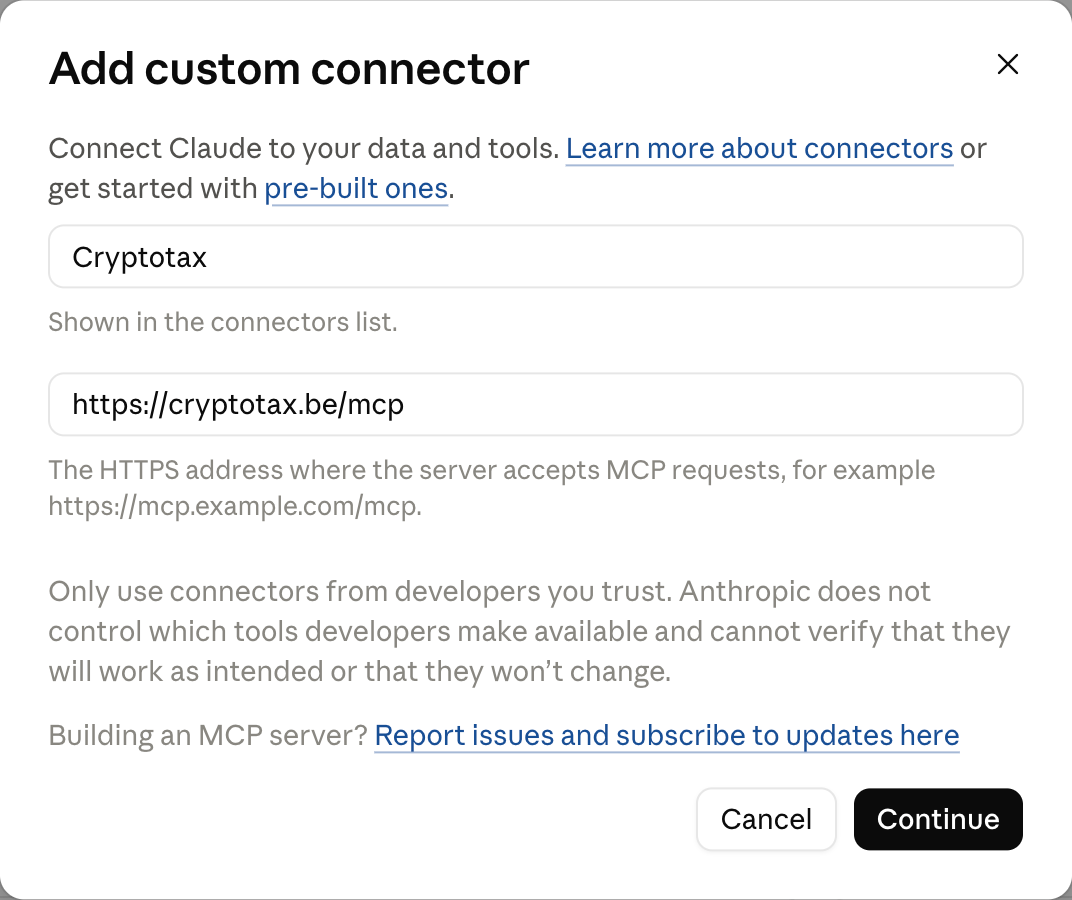
- Choose Add custom connector. Give it a name, for example Cryptotax, enter
https://cryptotax.be/mcpas the URL and click Add. - Click Connect on the new connector. A Cryptotax window opens. Sign in as you always do.
- You now see the consent screen (see The consent screen below). Check the details and click Allow.
- Back in Claude, Cryptotax is listed under your connectors. Enable it in a conversation and ask your question.
A connector you add on claude.ai can also be used in Claude Desktop with the same account. If you use Claude on a Team or Enterprise plan, an admin adds the connector and you only click Connect.
Connecting ChatGPT
- Open the settings in ChatGPT and go to Apps (Apps & Connectors in older versions). For custom connectors, first turn on developer mode in the advanced settings.
- Create a new connector with
https://cryptotax.be/mcpas the URL and OAuth as the authentication method. Confirm that you trust the app. - Sign in to Cryptotax and click Allow on the consent screen.
- Select Cryptotax in a new conversation (via the + menu) and ask your question.
The exact options you see depend on your ChatGPT plan and may change. If you cannot find the connector settings, check ChatGPT's help pages.
The consent screen
Before you give an app access, Cryptotax always shows a consent screen titled <app name> wants access to your Cryptotax data. On it you see:
- Which account you are signed in with (Signed in as ...).
- Verified app or Unverified app. Cryptotax recognises Claude and ChatGPT by their fixed return address and labels them Verified app. Any other app shows a warning: the name was chosen by the app itself and can be misleading.
- The address that gets access, for example
claude.aiorchatgpt.com. If you do not recognise that address, click Deny. - What the app may do. Read your data is always on. Make corrections is ticked when the app asks for it. Untick it if you only want your assistant to read.
Only click Allow if you started the connection yourself. If this screen appears while you were not connecting anything, click Deny.
Creating an API token (Claude Code, Cursor and other tools)
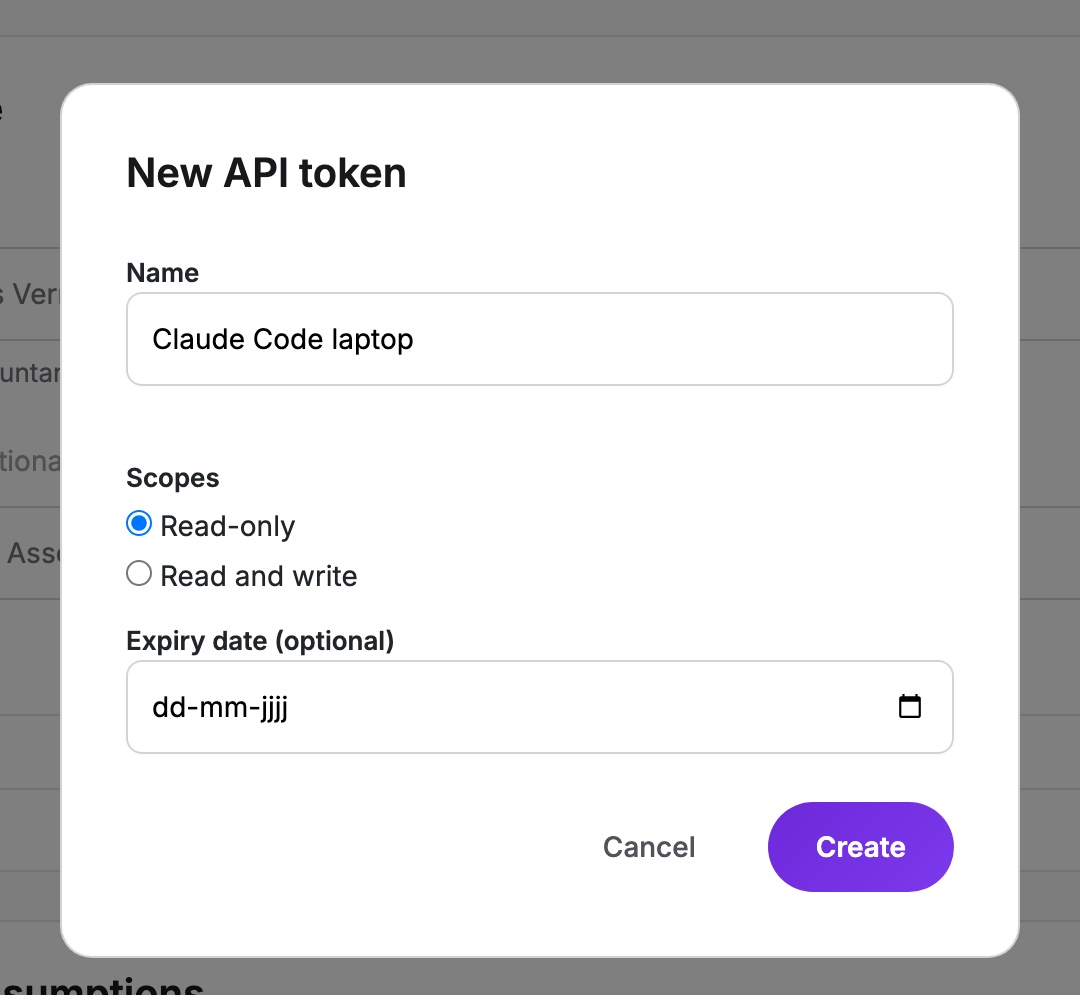
- In the app, go to Settings and scroll to API Tokens.
- Click + New token.
- Give the token a name you will recognise later, for example Claude Code laptop.
- Choose the Scopes:
- Read-only: your assistant can fetch your data but cannot change anything. This is the default and the safest choice.
- Read and write: your assistant can also make corrections. Only choose this if you really want that.
- Optionally pick an Expiry date. The token works until the start of that day. If you leave it empty, the token stays valid until you revoke it.
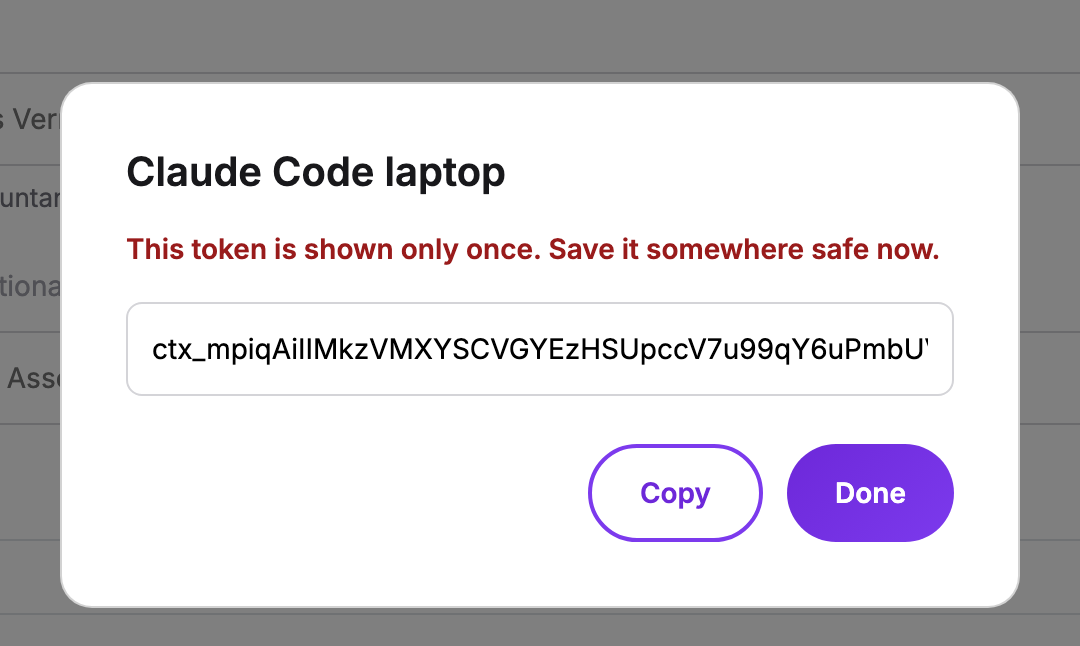
- Click Create. Your token starts with
ctx_. Copy it right away: it is shown only once. Afterwards the list only shows its first characters.
Your assistant sends the token as the header Authorization: Bearer ctx_... to https://cryptotax.be/mcp.
Claude Code
Add the server with this command (replace ctx_... with your token):
claude mcp add --transport http --scope user cryptotax https://cryptotax.be/mcp \
  --header "Authorization: Bearer ctx_..."
With --scope user the connection works in all your projects. Claude Code stores the token in your own configuration file (~/.claude.json).
Then type /mcp in Claude Code to check that Cryptotax is connected.
Cursor
Add Cryptotax to your MCP configuration (~/.cursor/mcp.json):
{
  "mcpServers": {
    "cryptotax": {
      "url": "https://cryptotax.be/mcp",
      "headers": {
        "Authorization": "Bearer ctx_..."
      }
    }
  }
}
Other tools that support MCP over HTTP with a custom header are set up the same way. Never put a file containing your token in a shared folder or a git repository. Technical details for developers are in the developer documentation.
What your assistant can do
With read access your assistant can fetch your accounts (wallets, exchanges and CSV imports), your tax years, your transactions, your tax summaries and the open items in your review list. If you turn on beta features in Settings, it can also look at your portfolio and your DeFi positions. Some example questions:
- "What is my tax summary for 2026?"
- "Which transactions still need to be reviewed?"
- "Which of my accounts have not synced in a long time?"
- "How much of the annual exemption do I have left in 2026?"
- "Summarise my largest sales of 2025."
With write access your assistant can make corrections: reclassify a transaction, match a withdrawal with a deposit, or create a rule that applies to all your years (for example, mark all transfers between two of your own addresses as own transfers). For example:
- "Mark the 0.5 ETH withdrawal on 3 March as a transfer to my own wallet and match it with the deposit on my Ledger."
- "From now on, ignore the tiny dust amounts in my wallet."
Cryptotax asks your assistant to get your confirmation before it changes anything, so read what it proposes before you say yes. After every change Cryptotax recalculates your file. While that recalculation is running, your assistant should wait before quoting new totals.
Reviewing and undoing changes
Your assistant's corrections to transactions and transfer matches show up on the tax year dashboard in the Mijn wijzigingen (My changes) card, together with your own edits. Click Verwijderen (Delete) to undo such a change.
Under Activity every change, including a new rule, appears as AI Agent Change. Rules are not listed in My changes, because they apply to all your years. You find them in Settings under Rules. A rule your assistant made shows the name of the API token or connected app it was created with. Use Delete to undo a rule. Cryptotax then recalculates your file.
What your assistant cannot do
- Locked years stay locked. For a year without a paid plan your assistant sees the same masked amounts you do, and cannot correct transactions or match transfers in it. A rule does apply to all your years.
- Frozen years stay frozen. In a year you submitted to your accountant for review or filed, your assistant cannot correct transactions or match transfers.
- Your assistant cannot connect or remove accounts, pay for anything or change your settings.
The figures your assistant gives come from the same calculation as in the app. It remains an indicative calculation and a tool, not tax advice. If you have doubts about your return, ask your accountant.
Connecting safely
- Only approve apps you started yourself. Check the label and the address on the consent screen.
- Choose read-only unless you want your assistant to make corrections.
- Treat an API token like a password. Do not share it and do not put it in shared files. An expiry date limits the damage if it does leak.
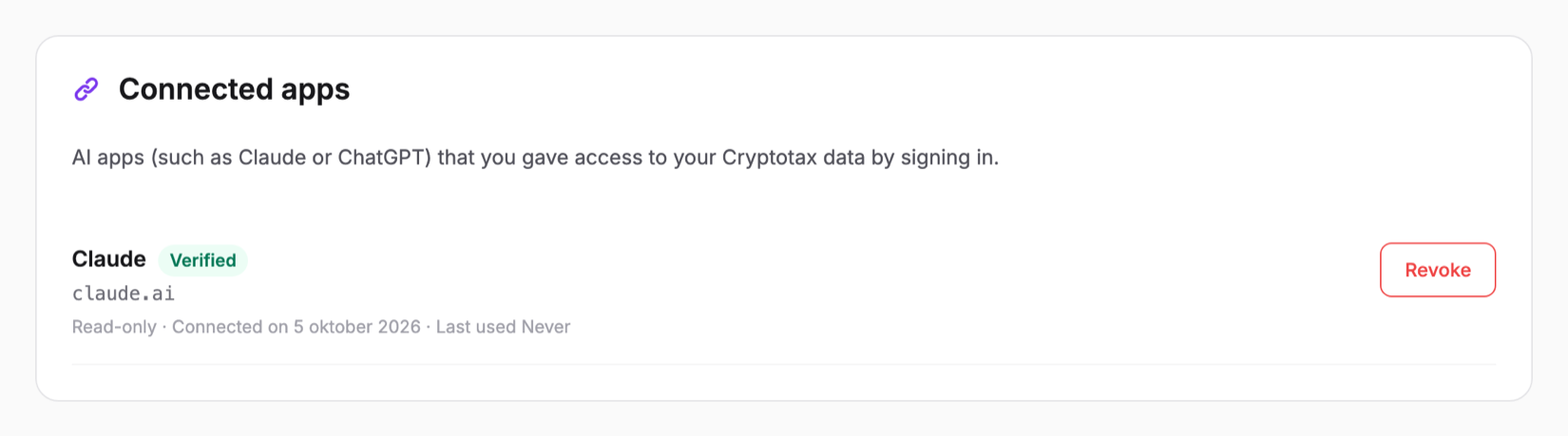
- Revoke anything you do not recognise. In Settings, under API Tokens and Connected apps, you see what has access and when it was last used. With Revoke a token or app loses access immediately.
- Your AI provider sees what you ask for. The data your assistant fetches goes to the provider of that assistant (for example Anthropic or OpenAI) and is subject to their terms.
Did your token leak? Revoke it immediately under Settings, API Tokens, and create a new one. Then check Activity and My changes for changes you do not recognise, and undo them. Also check Settings, Rules, because rules are not listed in My changes. Delete any rule you do not recognise there.
Troubleshooting
The connection is refused
If you use an API token, check that it is still in your list and not Revoked or expired, and that you entered the header exactly as Authorization: Bearer ctx_.... If the token is gone or revoked, create a new one. Also check that the address is exactly https://cryptotax.be/mcp, with no extra character at the end.
I keep landing on the sign-in screen
Allow pop-ups from cryptotax.be and do not block cookies for cryptotax.be. Sign in to Cryptotax in a normal tab first, then start the connection again from your AI app. If you see Connecting is not possible, the request has usually expired: start the connection again from your app.
I see "Unverified app"
If you connect Claude Code, Cursor or another tool by signing in instead of with a token, that is normal: Cryptotax does not know their return address in advance. If you see it for claude.ai or chatgpt.com, or you do not recognise the address, click Deny.
My assistant says the connection is read-only
Then you did not grant write access. For a connected app, revoke access under Connected apps and connect again with Make corrections ticked. If you cannot tick it, the app does not request write access; use an API token instead. For an API token, create a new token with Read and write; you cannot change the scopes of an existing token.
My assistant suddenly has no access
A connected app you do not use for 90 days loses its access. Access also ends when you revoke the app. Connect again from your AI app. Revoke old connections you no longer use under Connected apps.
My assistant reports a limit
Each token or app can make up to 120 requests per minute. Wait a moment and try again.
My assistant says Pro is required
The connection only works with a Pro plan. If your account has no Pro plan (any more), Cryptotax refuses every request from your assistant and you cannot add a new app or token. After an upgrade your existing connection works again, there is no need to reconnect.
A year is locked or frozen
A locked year needs a paid plan, see pricing. A frozen year can no longer be changed, not even in the app itself.
Frequently asked questions
Does this cost anything?
Connecting your AI assistant is part of the Pro plan and costs nothing on top of Pro. Without a Pro plan you cannot connect an assistant. Which years your assistant sees in full still depends on the years your plan covers, as always.
Which assistants work?
Claude (claude.ai, Claude Desktop and Claude Code), ChatGPT and Cursor. Other apps that support MCP over HTTP usually work too.
Can my assistant file my tax return?
No. Your assistant reads your data and, if you allow it, can make corrections. You file the return itself in Tax-on-web, possibly together with your accountant.
Where can I read more?
An overview of what the AI integration can do is on the AI integration feature page. Technical details for developers are in the developer documentation.